
Diary and booking settings
Create and manage services
Set service families, named variants, public details, prices, appointment length, provider assignments, and booking rules.
For: Owners and administrators
Before you start
- Add practitioner profiles before assigning them to a service.
Create a service
- Open Clinic setup → Services.
- Enter the internal service name and, when useful, a clearer public name, description, and category.
- For a standalone service, leave Service family unchanged. To create a group, give the root service a short Variant name such as Initial consultation; then create related services, choose that family, and name each option such as Follow-up or Long hair.
- Choose whether to show no price, a fixed price, a from price, Free, or Price on request. Fixed and from prices are entered in GBP.
- Set the appointment length, customer eligibility, and whether the service is offered online.
- Create the service, then open it to finish the setup.
- Assign every provider who offers it.
- For an assigned provider, leave duration and price blank to inherit the service defaults, or enter the values that apply only to that provider.
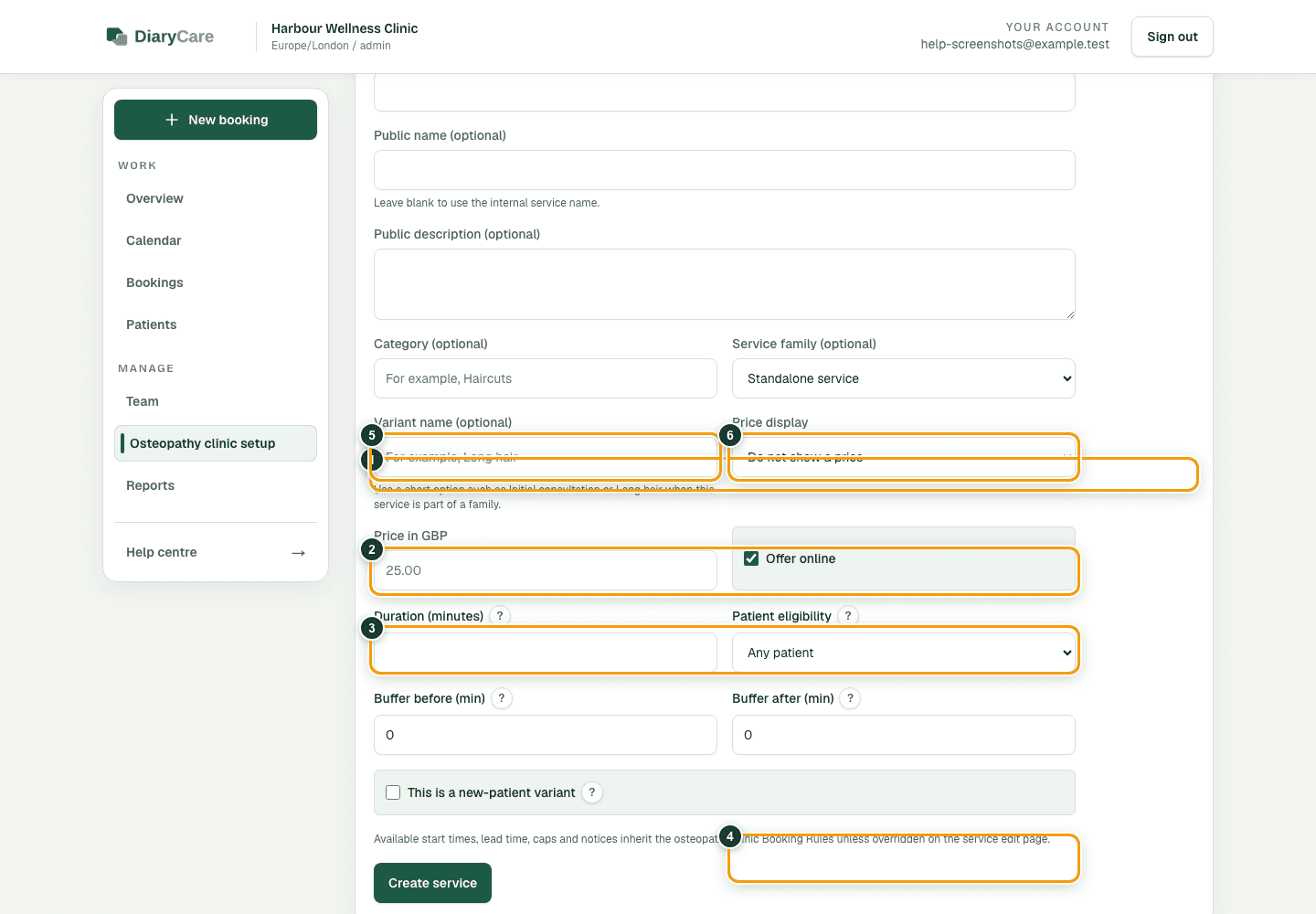
What the numbers show
- 1Add a new service from the service catalogue.
- 2Use the internal name staff recognise.
- 3Add a clearer customer-facing name when needed.
- 4Choose an existing family for a related option.
- 5Give the option a short variant name.
- 6Choose how the price should appear during booking.
Finish the service setup
- Set the order used on the public booking page, plus optional preparation and aftercare guidance.
- Each variant is a concrete service with its own duration, price, providers, availability, and rules. Public booking groups related variants under their family name; staff see the same choices in a labelled group.
- Add buffer time before or after the appointment.
- Mark a service as the new-customer version of a related service; DiaryCare displays patient or client for the selected business category.
- Limit the service to certain days and times. With no service window, the assigned provider’s working hours are used.
- Add text, dropdown, or checkbox questions for the customer.
- Override the business’s usual start times, lead time, booking window, same-day cut-off, caps, or cancellation and reschedule notice periods.
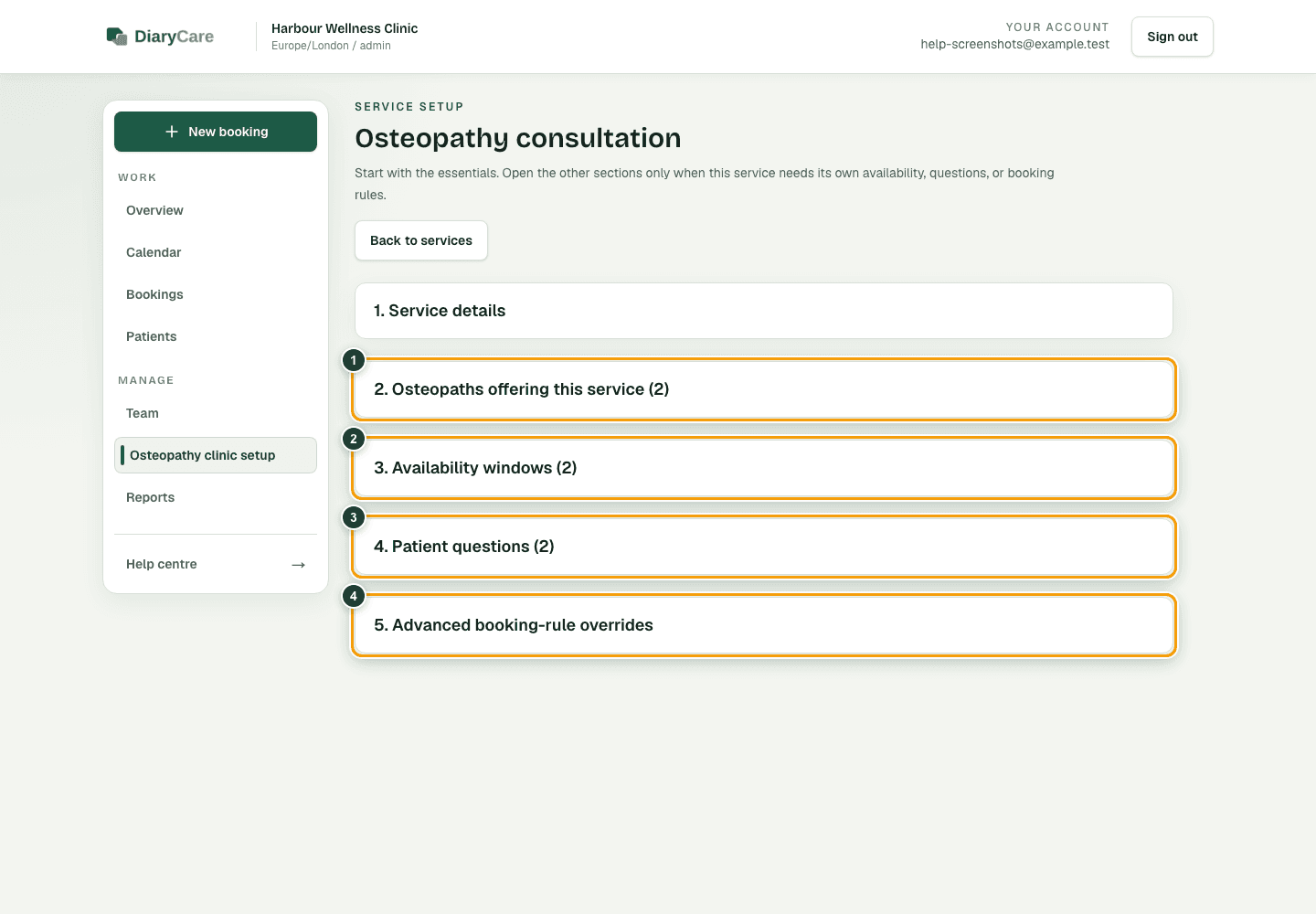
What the numbers show
- 1Choose the providers who can deliver the service.
- 2Use availability windows only when the service needs narrower hours.
- 3Add questions that the customer must answer while booking.
- 4Use advanced overrides only when the clinic defaults are not suitable.
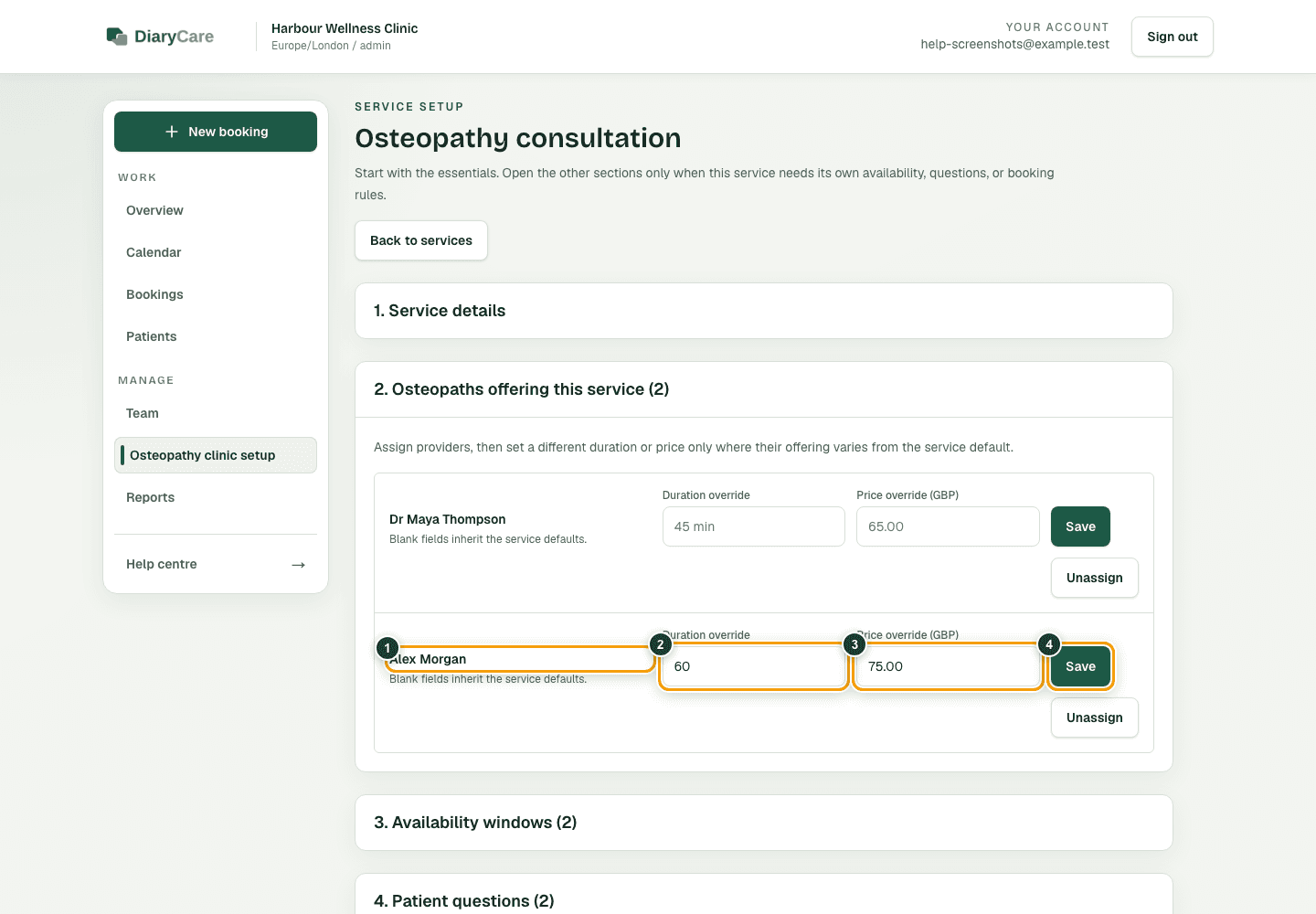
What the numbers show
- 1Overrides belong to one assigned provider.
- 2Enter the appointment length this provider needs.
- 3Enter this provider’s agreed GBP price.
- 4Save the provider offering independently from the main service details.
Good to know: A variant can belong only to a standalone root family; variants cannot contain other variants. Providers are assigned from the service setup page, not from a provider profile. Provider duration and price overrides affect public availability, staff bookings, the appointment summary, and the agreed price shown in lifecycle emails. A provider's online booking minimum notice is set on their profile and does not change appointment length. A price override requires fixed or from pricing on the service. Turning off Offer online keeps the service available for staff bookings but removes it from hosted and embedded booking. New bookings retain the public service name, variant name, effective provider price, currency, duration, and override values recorded when they were created; later catalogue edits do not rewrite that history. Approval is a business-wide rule and cannot be overridden for one service. Removing a question does not remove answers already stored on older bookings. Archive a service when it should stop appearing for every new booking.
Understand defaults and overrides
Clinic booking rules are the starting point for every service. A blank service override keeps the clinic default. A value entered here replaces that one default for this service only.
For example, if the clinic normally allows booking 60 days ahead but a new-patient assessment should be bookable for only 42 days, enter 42 on that service and leave the other fields blank.
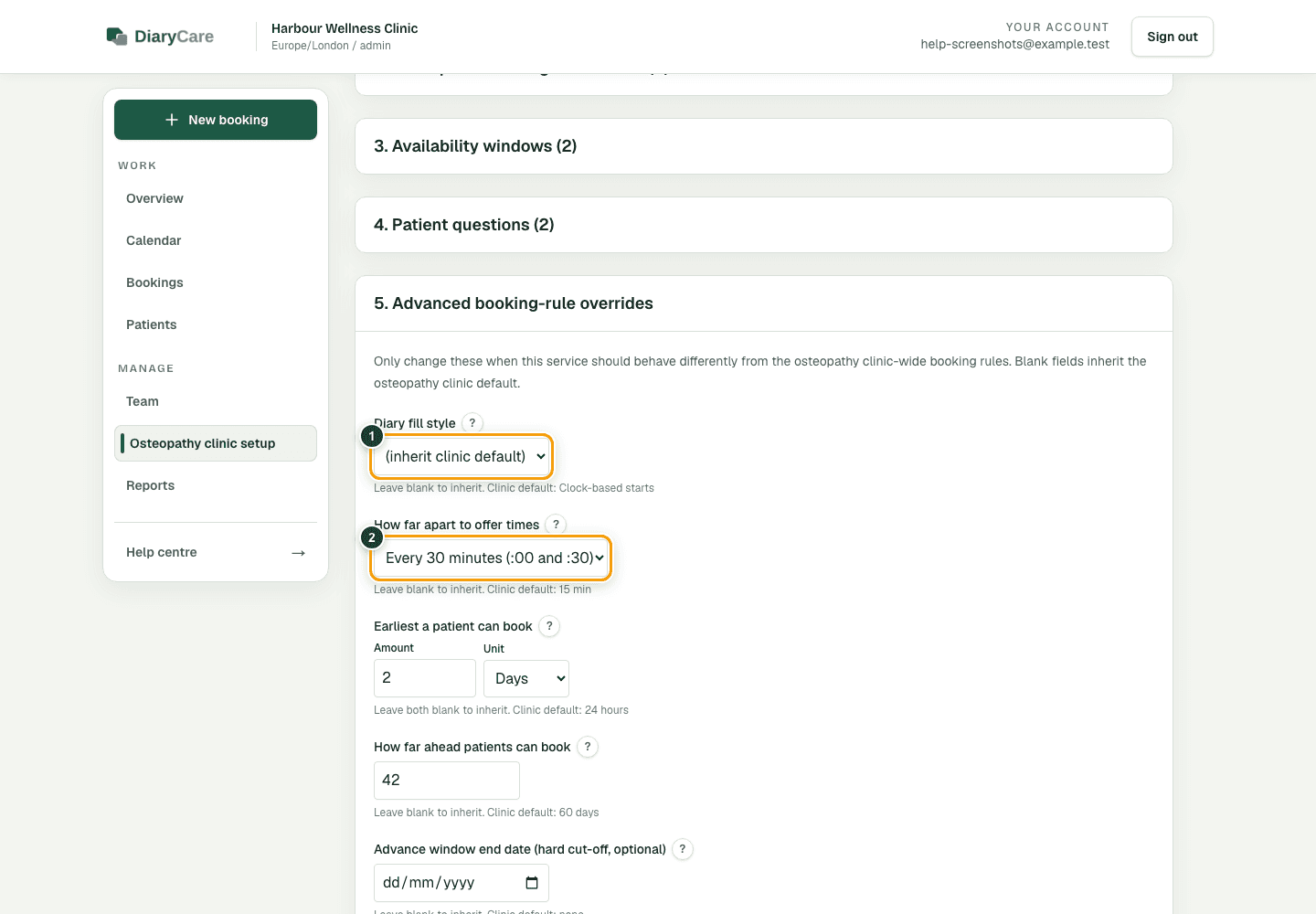
What the numbers show
- 1Leave Diary fill style on inherit unless this service should fill the diary differently.
- 2A service-specific spacing value replaces the clinic value for this service.
Good to know: After changing a service, test it on the public booking page. Check at least one normal date, one date near the lead-time limit, and one date near the end of the booking window.
Couldn’t find the answer?
Email contact@diarycare.co.uk and tell us which step you reached.
Contact support