
Diary and booking settings
Add time off and clinic closures
Block a whole day or part of a day for one practitioner or the whole clinic.
For: Owners and administrators
Block unavailable time
- Open Clinic setup → Time off.
- Choose a practitioner, or choose Whole clinic for a closure.
- Choose the first and last date.
- For part of a day, add both a start and end time. Leave them blank for whole days.
- Add an internal reason and select Add time off.
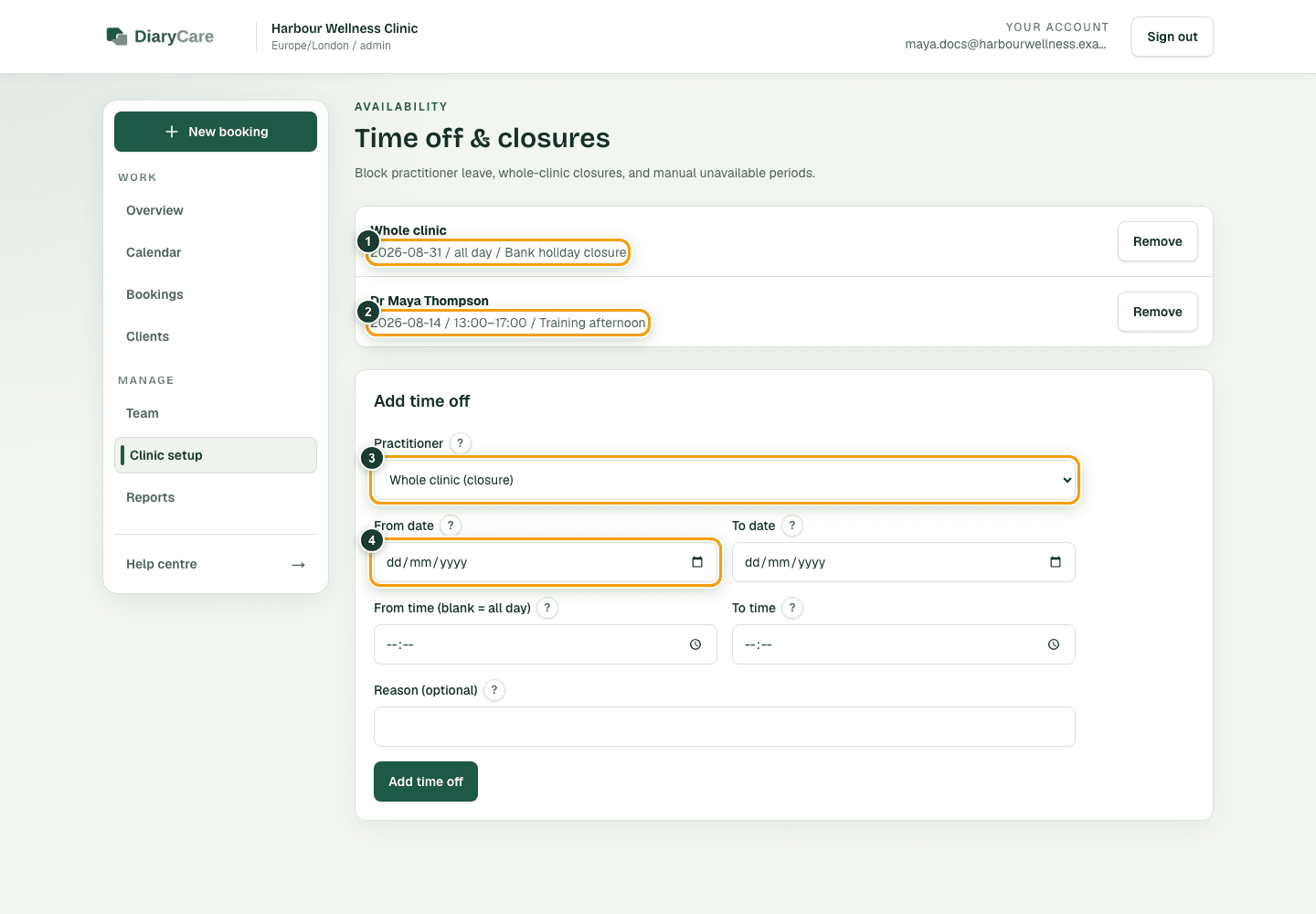
What the numbers show
- 1A whole-clinic block closes matching times for everyone.
- 2A practitioner block affects only that person.
- 3Choose who the block applies to.
- 4Set the first date; add an end date for a longer period.
Good to know: Time off removes matching times from online availability, but it does not cancel appointments that are already booked. Check the calendar and contact affected patients yourself. If you remove a block, those times may become bookable immediately.
Couldn’t find the answer?
Email contact@diarycare.co.uk and tell us which step you reached.
Contact support