
Diary and booking settings
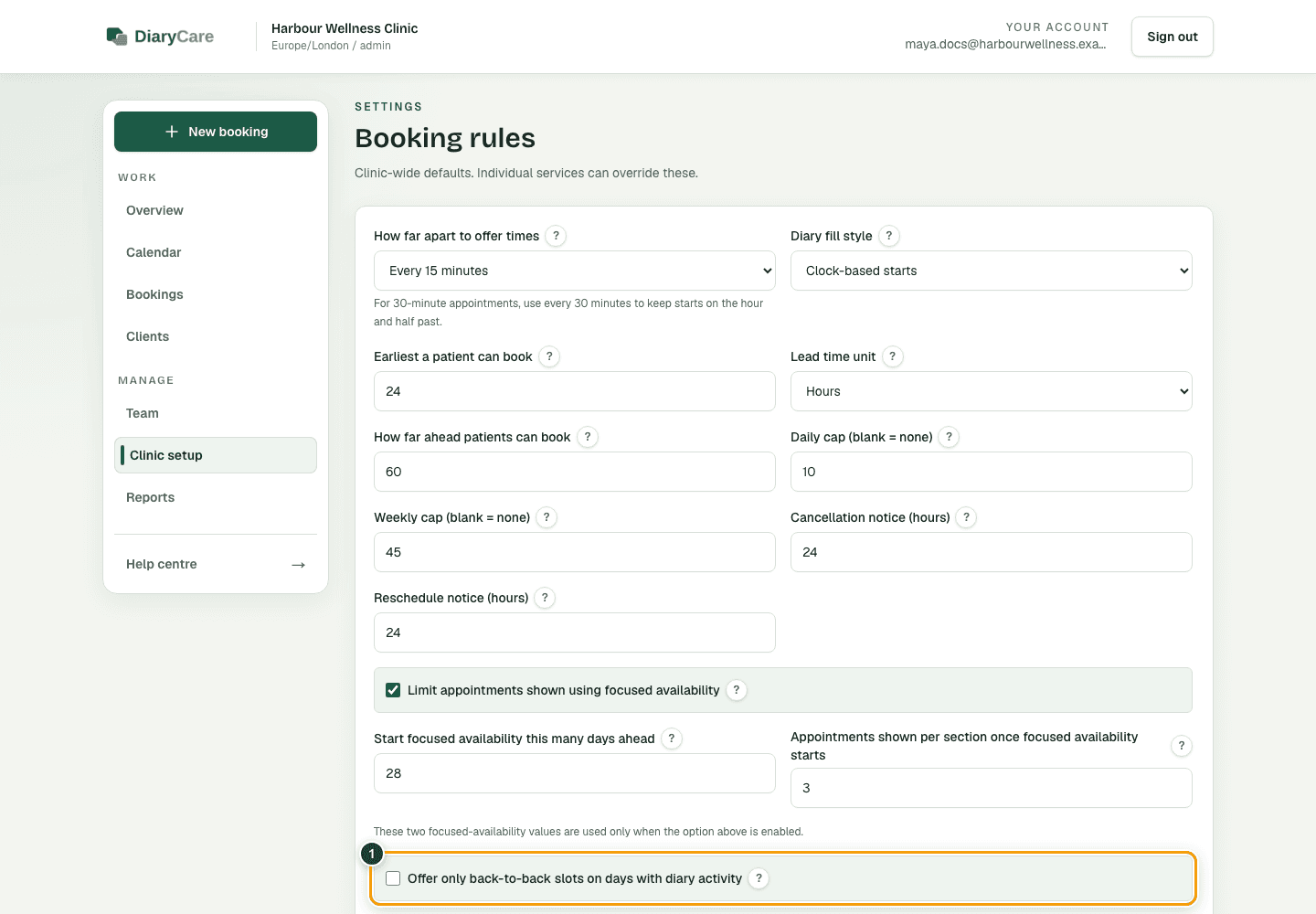
Offer only back-to-back times
Prioritise times directly beside existing appointments on an active diary day.
For: Owners and administrators
Choose where it applies
- New clinics start with the clinic-wide option on.
- For every practitioner, open Clinic setup → Booking rules and turn on Offer only back-to-back slots on days with diary activity.
- For one practitioner, leave the clinic-wide option off, open Team, choose the practitioner, and turn on Offer only back-to-back slots in their details.
What the numbers show
- 1Turn this on when patients should mainly see times touching existing DiaryCare appointments on active diary days.
What patients see
When that practitioner already has a DiaryCare appointment on a day, patients see only valid appointments that start or finish directly beside existing DiaryCare appointments. If a service length cannot line up exactly with the clinic’s start-time interval, DiaryCare also allows the smallest unavoidable alignment gap—for example, 15 minutes for a 45-minute service offered every 30 minutes. If the diary has no appointment that day, ordinary availability is used. If no valid time can sit directly beside an appointment—for example, when Google busy time covers the touching slot, or a chosen time of day has no adjacent times—patients see the closest available times instead of an empty day. Google busy time can block a time, but it is not treated as diary activity to place appointments beside.
The clinic-wide switch and the practitioner switch combine: if either one is on, the stricter rule applies to that practitioner.
Couldn’t find the answer?
Email contact@diarycare.co.uk and tell us which step you reached.
Contact support