
Diary and booking settings
Set clinic booking rules
Choose a booking style as a starting point, then fine-tune the clinic-wide defaults that decide which appointment times patients and staff can book.
For: Owners and administrators
Choose a booking style
Booking style is a named starting point for how online bookings work. Apply a style when you want a clear policy, then customize any rule that needs a different value.
- Open Clinic setup. On the Essentials list, open Booking style, or open Advanced → Full booking rules.
- Review the four styles: Recommended (automatic confirm, 24-hour notice, compact diary), Flexible (shorter notice and more open times), Protected (longer notice and a shorter booking window), and Review every request (staff approve each booking first).
- Select Apply this booking style on the style you want. Existing clinics keep their current settings until you apply a style or save the full rules form—nothing is applied just by opening the page.
- If no style matches exactly, the page shows Currently: Custom with a short summary. You can still apply any style, or leave Custom and edit individual rules.
- Select Customize booking rules to jump to the full field list, change only what you need, then Save.
Good to know: Apply updates only the mapped style fields: staff approval (for Review every request), online lead time, how far ahead patients can book, cancel and reschedule notice, start-time spacing, diary fill style, offer-only back-to-back packing, and focused availability. It does not change internal staff booking notice, data retention, practitioner access, or the Any time / Morning / Afternoon / Evening choices.
Fine-tune the full rules
- On Booking rules, open All booking rules (or select Customize booking rules).
- Change the defaults your clinic needs.
- Select Save.
- Open any service that needs different rules and add its overrides there.
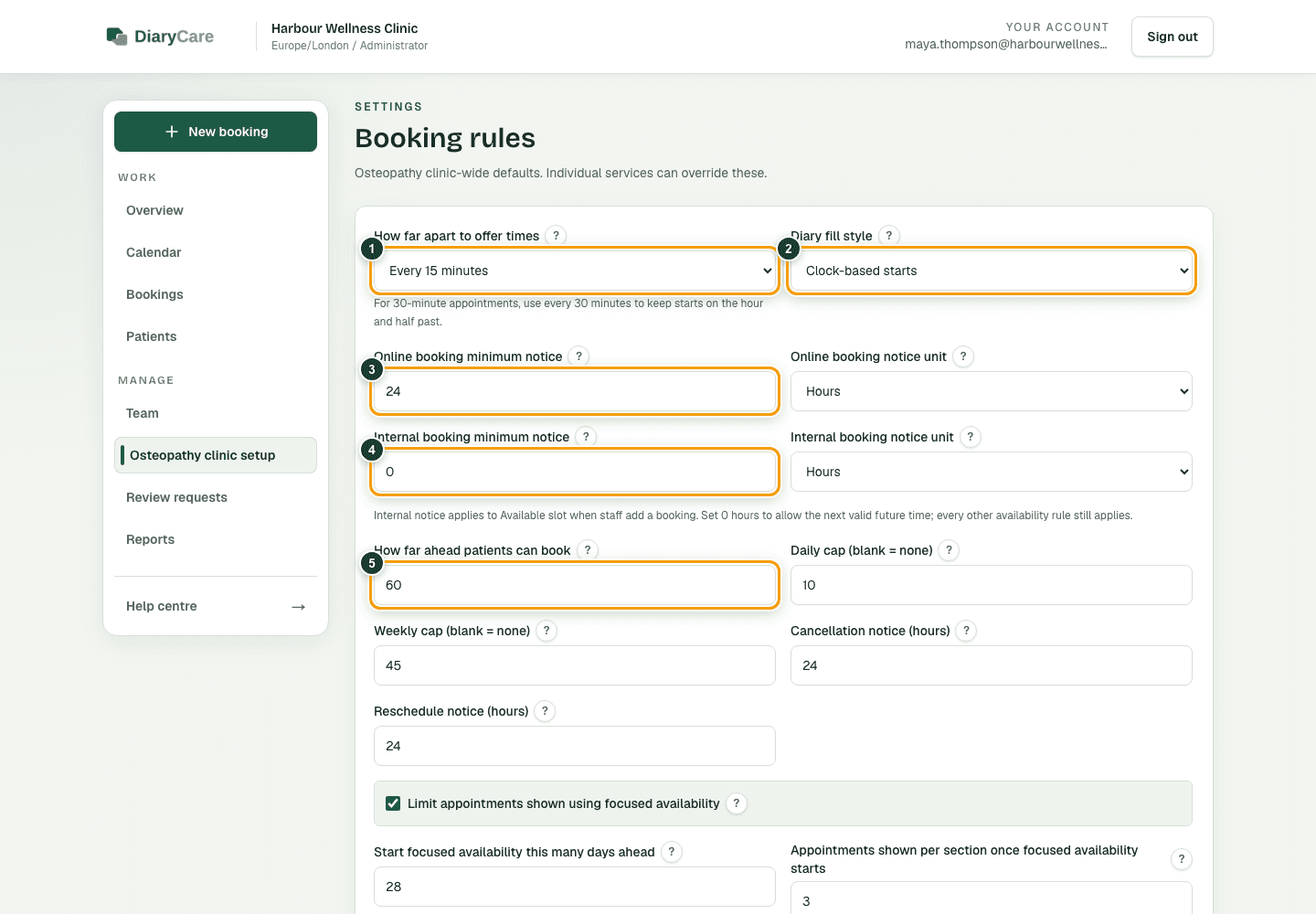
What the numbers show
- 1Choose how far apart possible start times are shown.
- 2Choose whether starts follow the clock or the previous appointment.
- 3Set the online minimum notice a patient must give before booking.
- 4Set the internal minimum notice used when staff look for an available time.
- 5Set the furthest number of days a patient can book ahead.
Know what each rule changes
- Start times and diary fill style: regular clock times or back-to-back starts.
- Online booking minimum notice and how far ahead patients can book. A provider profile can replace the online notice for that person; if that is blank, a service can replace it; otherwise the business default is used.
- Internal booking minimum notice for the automatic Time choices when staff add an appointment. It starts at 0 hours for every clinic, allowing the next otherwise-valid future start.
- Daily and weekly booking caps.
- How much notice patients need to cancel or reschedule.
- Whether a booking needs staff approval.
- Whether weekends appear on the public booking page.
- Which Any time, Morning, Afternoon, and Evening choices patients see. Clear all four to hide the time-of-day question without removing available appointments.
- What practitioners can do with manual bookings and client history.
Good to know: The internal minimum notice replaces only the online lead-time rule for the staff availability search. Working hours, service windows, time off and closures, duration and buffers, locations, diary fill rules, focused availability, booking caps, existing DiaryCare appointments, and Google busy time still apply. New clinics start with Offer only back-to-back slots enabled, so an active diary day is packed beside existing DiaryCare appointments. A blank provider or service override uses the next default. A service can also have its own fixed end date or same-day cut-off. Staff approval is always clinic-wide. Test both the public booking page and the staff Time stage after a large rule change.
Control practitioner access
The three Practitioner access choices affect staff tools, not the times patients see. They decide whether practitioners can add manual appointments, pick an existing patient, and see appointment history for patients treated by other practitioners.
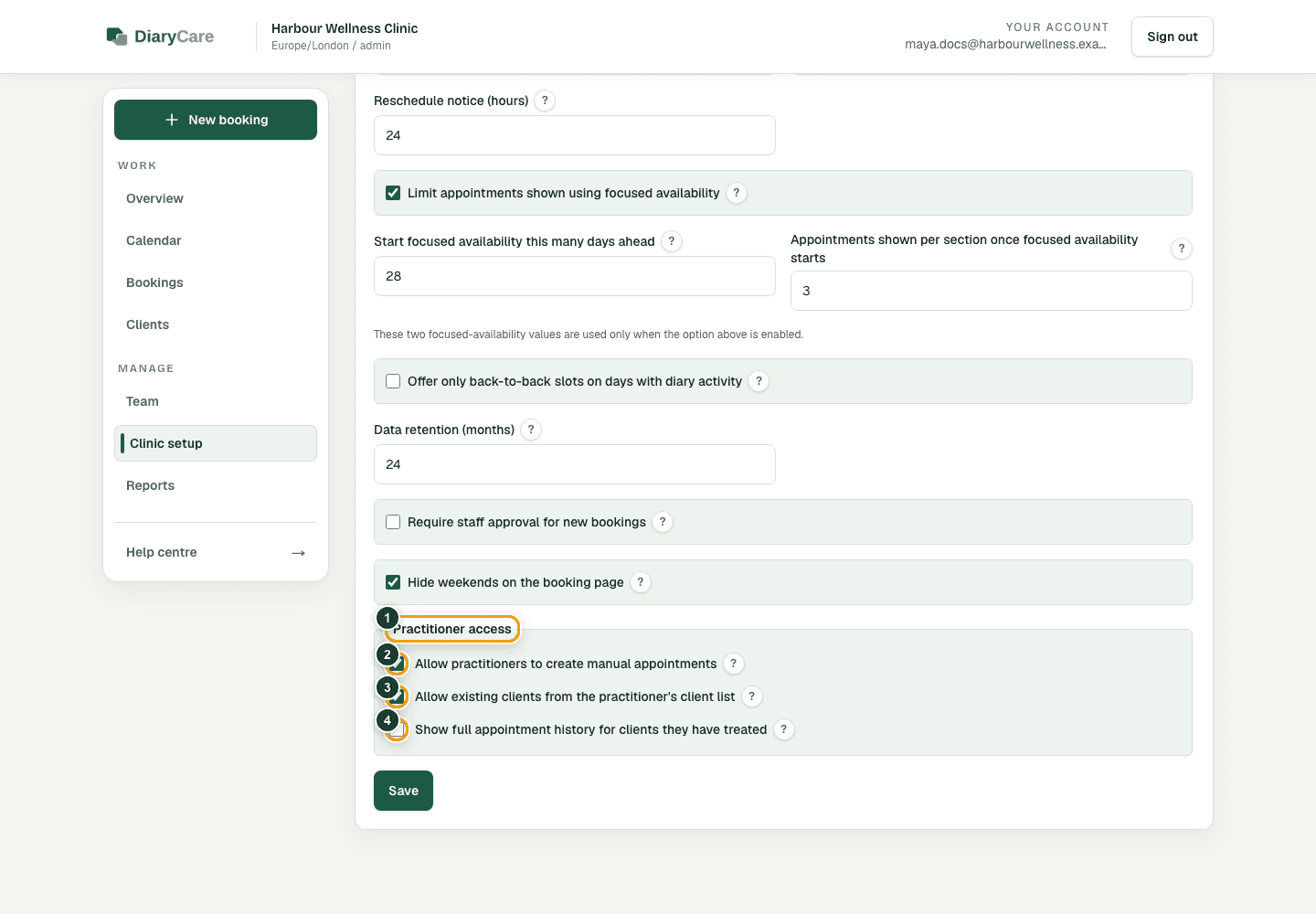
What the numbers show
- 1Practitioner access is managed separately from patient-facing booking rules.
- 2Allow practitioners to create manual appointments.
- 3Allow practitioners to select patients already in their own client list.
- 4Allow wider appointment-history access for patients they have treated.
Couldn’t find the answer?
Email contact@diarycare.co.uk and tell us which step you reached.
Contact support