
Team and availability
Set provider working hours
Add weekly hours by day and location so DiaryCare can build real availability.
For: Owners and administrators
Before you start
- An active provider and at least one appointment location.
Add a weekly schedule
- Open Team and choose the provider.
- Assign the locations where they work.
- In Working hours, choose one or more weekdays.
- Choose a location or use any assigned location.
- Enter the start and end time, then save the block.
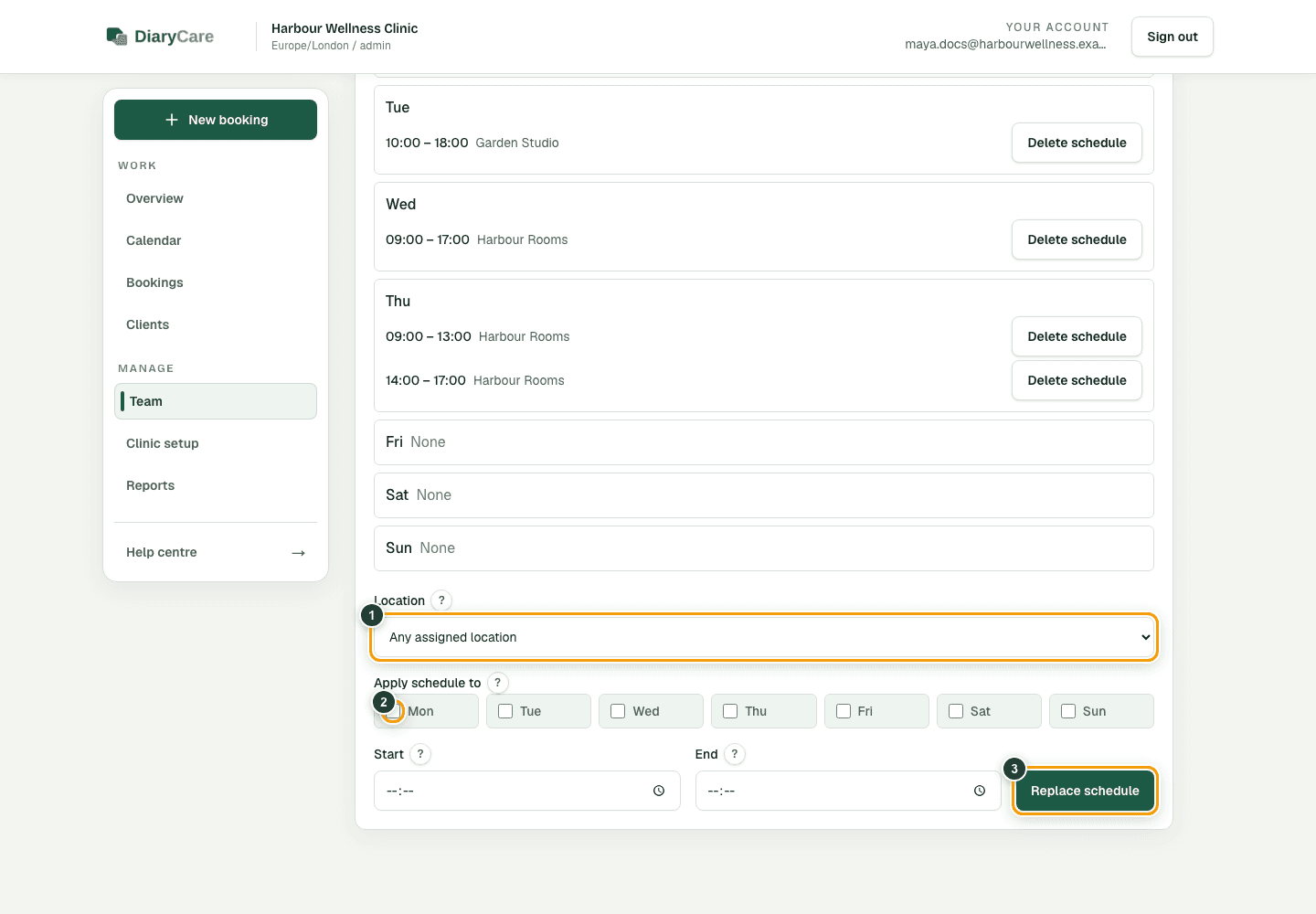
What the numbers show
- 1Choose a specific location or any location assigned to the provider.
- 2Select every weekday that should receive the same hours.
- 3Replace schedule saves the new block for the chosen days and location.
Good to know: Replacing a schedule removes the existing block for the same day and location. A service can further limit these hours with its own availability window.
When a time is offered
A time must fit the working hours, service duration and buffers, location, booking rules, time off, existing bookings, and Google busy time. If any one of those blocks the time, customers will not see it.
For example, 09:00–17:00 working hours do not promise every start in that range. A 45-minute service with buffers must still fit completely, and any service window or time-off block can narrow the result.
Good to know: After changing hours, test the public booking page for the provider, service, location, and weekday you changed.
Couldn’t find the answer?
Email contact@diarycare.co.uk and tell us which step you reached.
Contact support