
Team and availability
Connect Google Calendar
Block personal busy time, keep DiaryCare appointments in a separate Google calendar, and optionally share booking-relevant event context with diary staff.
For: Practitioners, owners, administrators, and staff with diary access
Before you start
- The Google account whose busy time should block this practitioner’s DiaryCare diary.
- For event-detail sharing, the connected practitioner must use their own DiaryCare profile and be comfortable sharing primary-calendar content with every staff member who can access their diary.
Connect a practitioner
- Open the practitioner profile in Team. A practitioner can open My profile.
- Find Google Calendar and select Connect.
- Choose the correct Google account and approve every requested Calendar permission. A reconnect must use the same account that owns the existing DiaryCare calendar.
- Return to DiaryCare and check that the status says Connected.
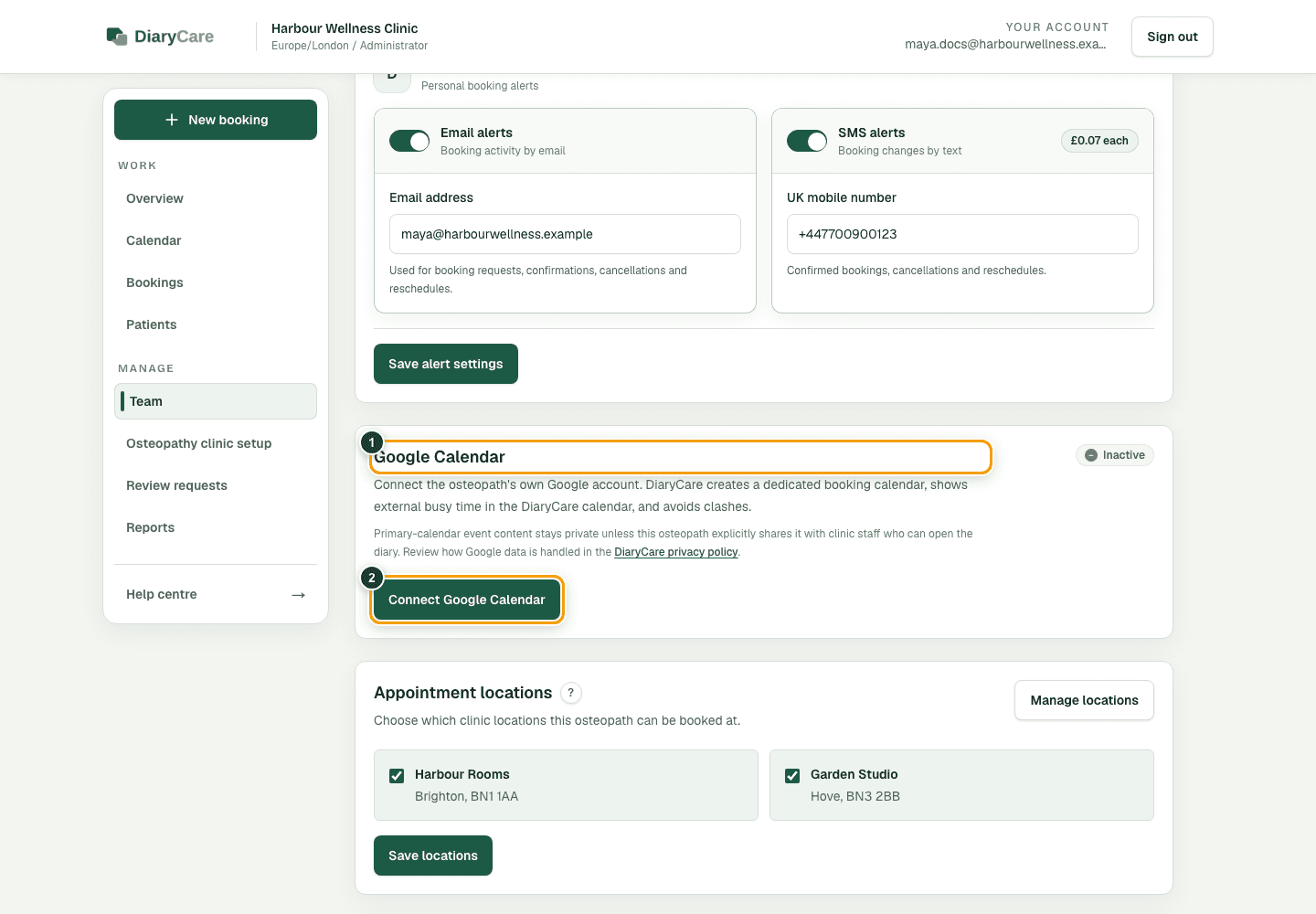
What the numbers show
- 1The panel explains what DiaryCare reads and shows the connection status.
- 2Start or repair the connection with this button.
What DiaryCare does
- Checks busy times in the main Google calendar and manually added or changed entries in the separate DiaryCare Google calendar. Matching DiaryCare appointment copies are recognised so they do not block time twice. This works without sharing private event details.
- Creates a separate DiaryCare calendar for confirmed bookings, without inviting patients or granting guest editing permission. Calendar owners and people given editing access in Google can still change those events.
- Updates or removes the linked Google event when staff change the booking in DiaryCare. Automatic calendar repairs are disabled: reviewing availability does not move, delete or restore existing events.
- Keeps primary-calendar event details private unless the practitioner separately opts in and approves additional read-only Google access.
- Checks both calendars again before confirming a new booking. If a connected Google calendar cannot be checked, the booking is not confirmed and you are asked to try again. Clinics without a Google connection can still book normally.
- Calendar marks unmatched entries with Review Google entry and explains that the time is blocked. Compare the marked time in Google and DiaryCare, then make any correction manually. A moved event can be flagged even when its original DiaryCare date is in the past.
Choose whether diary staff can see event details
- Sign in as the connected practitioner, open My profile, and find Google Calendar.
- Select Share event details. Event details are off by default, and another clinic role cannot select this for the practitioner.
- If the control is not available in the mobile app, an owner or administrator can open the practitioner's web profile and select Email event-detail request. Open that email in a web browser; its secure DiaryCare link returns to the request after sign-in.
- Review Google's permission screen and approve every requested Calendar permission, including the additional read-only access.
- Return to the profile and check that Event details says shared with authorised diary staff.
- Select Stop sharing event details whenever the primary-calendar context should return to private busy blocks.
- DiaryCare uses the additional read-only permission only to fetch booking-relevant events from the practitioner's primary calendar.
- Staff who already have access to that practitioner's web diary can see the event title, description, location, organiser, attendees and RSVP responses, meeting link, Google Calendar link, attachments, visibility and event-type labels, and all-day or recurring indicators.
- External events stay read-only and are not converted into DiaryCare appointments. Their details are fetched when the web diary loads and are not stored in DiaryCare.
- If an event cannot be matched or its details cannot be read, DiaryCare keeps the time as an untitled busy block. Free/busy time continues to control availability.
- Public booking pages and the mobile app continue to receive only opaque busy time.
Who can connect
Google Calendar belongs to provider diary setup. Owners, administrators, and providers can start a basic connection where their provider access allows it. Office Admin accounts cannot start or complete Google Calendar authorization and are not shown a connection prompt after accepting an invitation. Only the connected practitioner can explicitly approve the additional event-detail access; once approved, clinic staff with permission to view that practitioner's diary can see the permitted details.
Couldn’t find the answer?
Email contact@diarycare.co.uk and tell us which step you reached.
Contact support