
Getting started
Find your way around the dashboard
Understand the main areas of DiaryCare and where to go for common jobs.
For: Staff with diary access
The Work area
- Overview shows today’s activity and role-specific operational priorities. Office Admin also gets an at-a-glance provider roster.
- Calendar shows appointments, working hours, unavailable time, and private Google busy time by date.
- Bookings gives you a list of appointments and booking requests.
- Clients contains patient contact details and appointment history.
What the numbers show
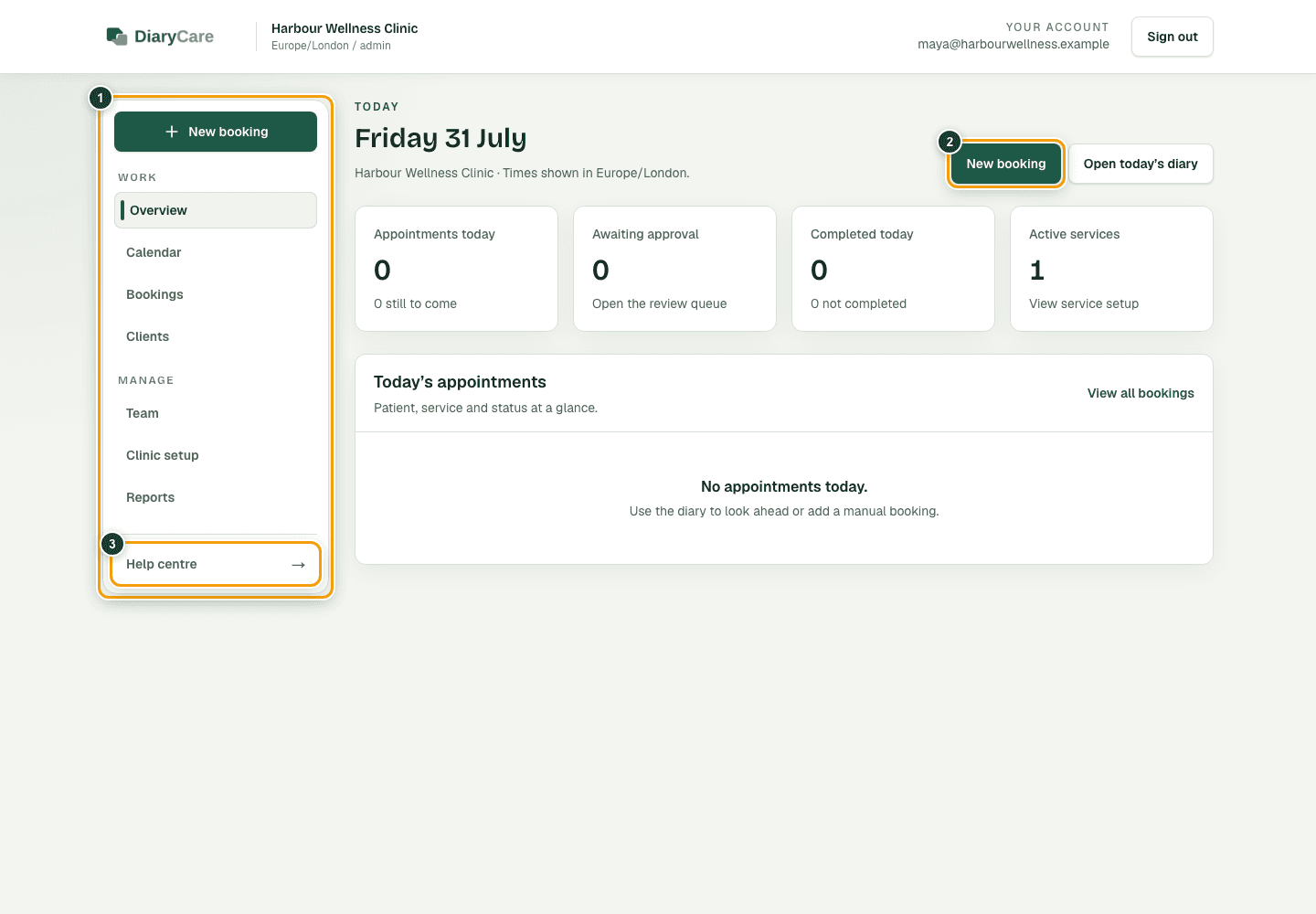
- 1Use the left menu to move between the Work and Manage areas.
- 2Select New booking to add an appointment.
- 3Select Help centre when you need guidance.
The Manage area
- Team is where owners and administrators add practitioners.
- Clinic setup opens with an Essentials checklist (business details, locations, services, availability, booking style, and go live) plus Advanced links for full booking rules, the booking widget, notifications, team access, and billing. Soft status pills guide setup only—they never block bookings.
- Reports shows appointment totals by practitioner.
Good to know: You only see areas your access level allows. On a phone, use the navigation bar at the bottom of the screen.
Your personal account
Open Account from the dashboard to change your name, email address, password, or sign-in security. These settings belong to you, not to the clinic.
Android preview navigation
The Android preview uses a bottom bar on a compact screen and a navigation rail on a larger or unfolded screen. Today, Calendar, New, and Bookings are demonstration areas backed by made-up records. Select the profile circle to open preview Settings.
Couldn’t find the answer?
Email contact@diarycare.co.uk and tell us which step you reached.
Contact support