
Getting started
Use the Help centre
Find your way around the public website and get simple guidance for any DiaryCare feature.
For: Business teams and website visitors
Use the public website menu
- Select the DiaryCare logo to return to the home page.
- Select Who it’s for, Features, or Pricing to move to that section of the home page.
- Scroll through the Features section to see the product demonstrations; they use compact, slightly quicker motion on smaller screens and gentle crossfades when reduced motion is enabled on your device.
- In Common questions, select a question to open its answer; opening another question closes the previous answer.
- Under Who it’s for, choose Osteopaths, Physiotherapists, Hair salons, or Barbers to open a page that uses the language of that industry.
- Select Help centre to open all support guides.
- Select Sign in if you already have a staff account, or Get started to create one.
Good to know: On a smaller screen, select Menu first. The mobile menu uses Staff sign in and Create an account for the same two account choices.
Search for an answer
- Open the Help centre.
- Enter the job you are trying to do in the search box. For example: cancel appointment or recovery codes.
- Choose a matching guide from the results.
- If nothing matches, try a shorter phrase or browse the categories below the search box.
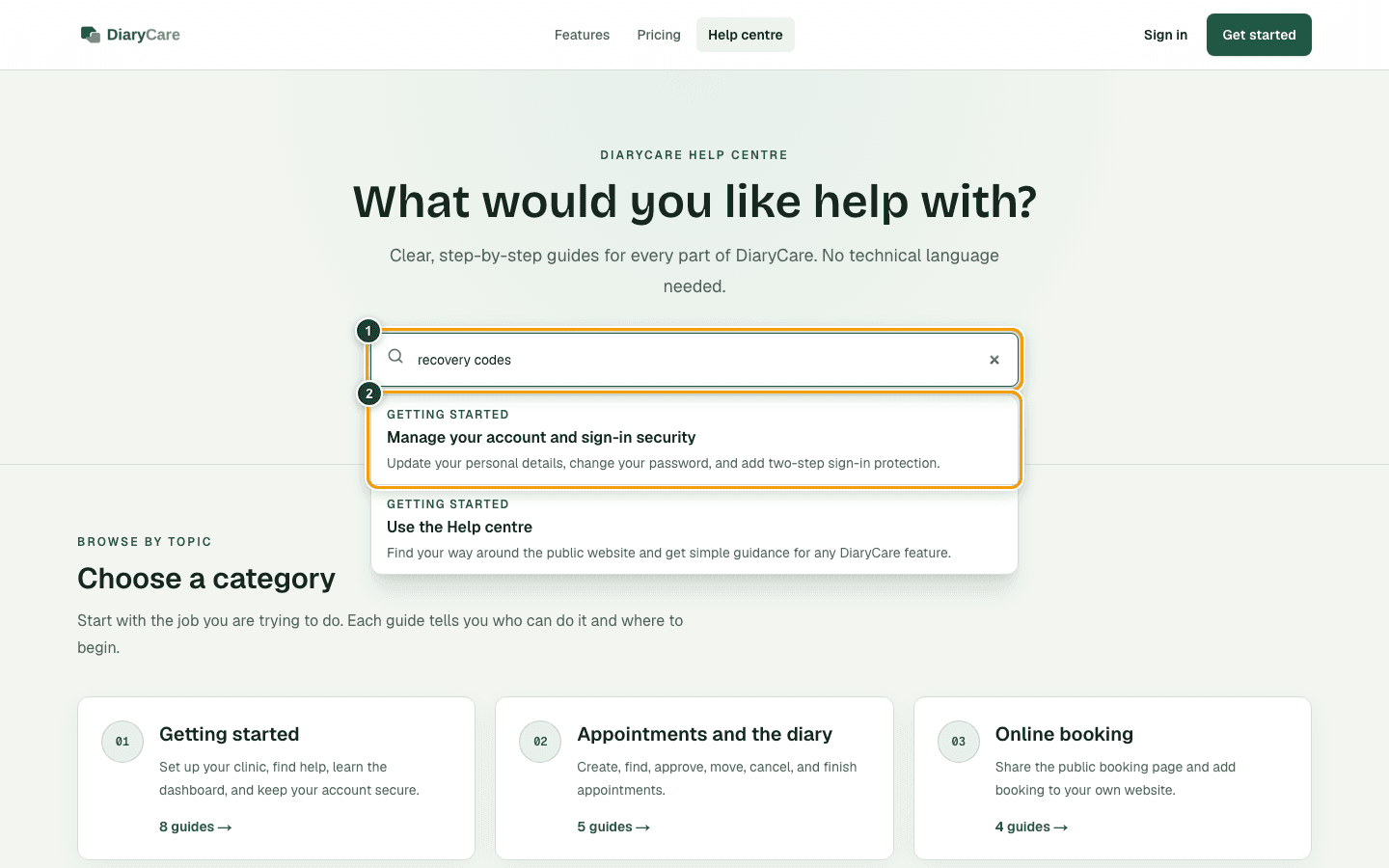
What the numbers show
- 1Enter a short description of the job or problem.
- 2Select the guide that best matches what you need.
Add DiaryCare to an iPhone Home Screen
- Open DiaryCare in Safari on the iPhone.
- Open Safari’s More menu and select Share. If the Share button is already visible, select it directly.
- Scroll through the actions and select Add to Home Screen.
- Check the shortcut name, then select Add. The DiaryCare icon appears on that iPhone’s Home Screen.
Good to know: A shortcut created before the DiaryCare icon was available may keep its old preview. Remove that shortcut and add it again after the update.
Browse by category
Choose a category such as Appointments, Clinic setup, or Clients and messages. The category page shows every guide in that topic with a short description, so you can choose the task that matches what you need.
Follow a guide
- The top of each guide says who it is for and what it helps you do.
- Numbered steps show actions in order. Bullet lists explain choices and Good to know boxes call out important limits.
- On larger screens, use the guide list and On this page links to move around quickly.
- Use Previous guide and Next guide at the bottom to continue through related help in the same category.
Contact support
If a guide does not solve the problem, email contact@diarycare.co.uk. Say what you were trying to do, which guide and step you reached, and what happened. Do not include passwords, recovery codes, or unnecessary patient information.
Couldn’t find the answer?
Email contact@diarycare.co.uk and tell us which step you reached.
Contact support