
Clients and messages
Set provider and office booking alerts
Choose whether the clinic office and each service provider receive booking-alert emails, and whether providers also receive SMS.
For: Owners, administrators, and service providers
Choose the alert details
- Open Business setup → Notifications, or open the provider profile.
- Turn email alerts on and confirm the address to use.
- Turn SMS alerts on and enter a UK mobile number if needed.
- Save the alert settings.
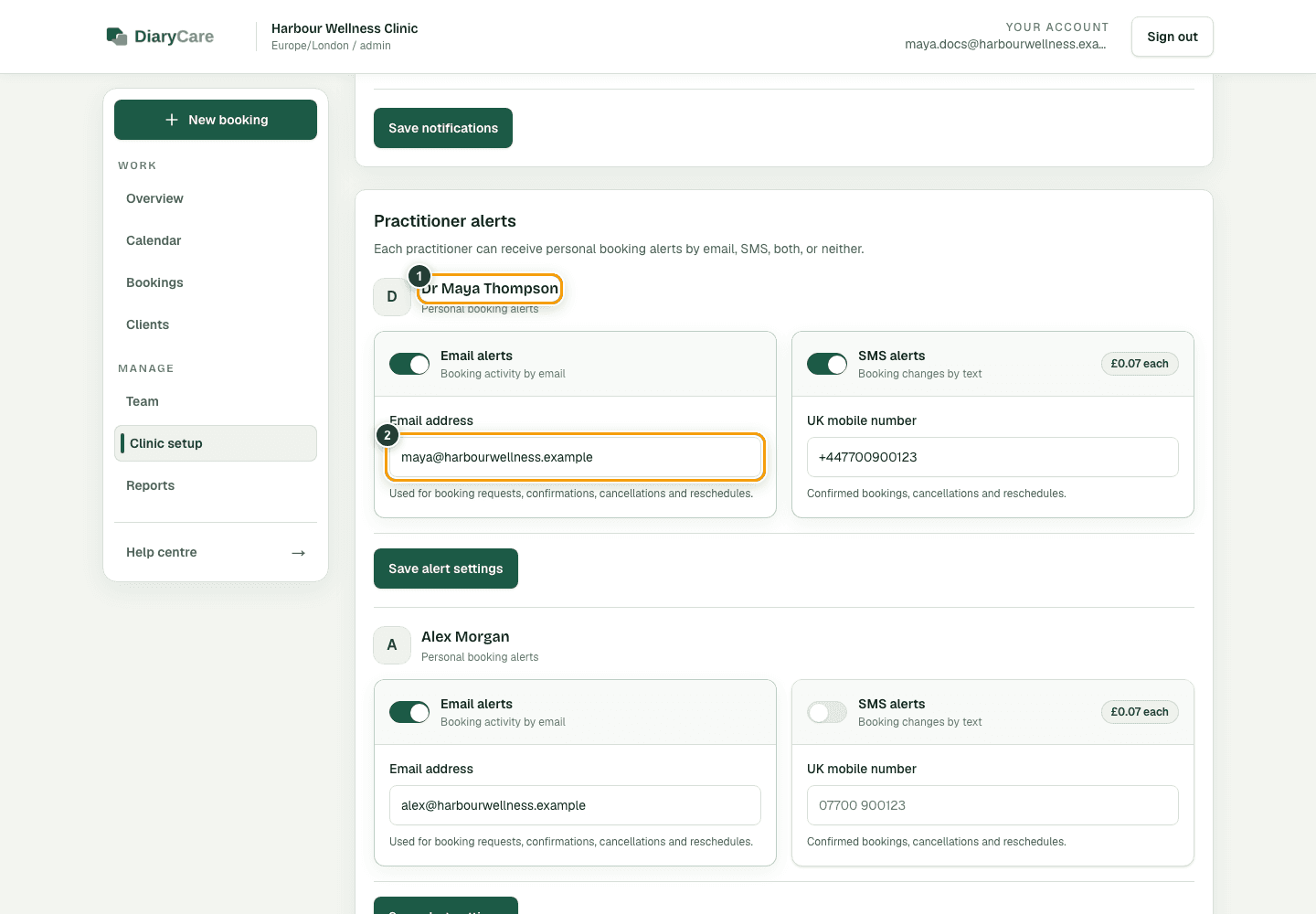
What the numbers show
- 1Check that you are editing the correct provider.
- 2Use an email address this provider checks for booking activity.
Good to know: Email alerts cover booking requests, confirmations, cancellations, reschedules, and rejections. SMS alerts cover confirmed bookings, cancellations, and reschedules; requests and rejections are not sent by SMS. A linked staff email can be used when no separate alert email is entered.
Copy alerts to an office email
- Open Business setup → Notifications.
- In Office alerts, turn Email office alerts on.
- Enter the office inbox, or leave it blank to use the practice contact email from Clinic setup.
- Select Save office alerts.
Good to know: Office copies use the same email alerts as providers. They are not sent by SMS. Turning office alerts off leaves each provider's personal alerts unchanged. Customer notification settings do not control office copies.
Couldn’t find the answer?
Email contact@diarycare.co.uk and tell us which step you reached.
Contact support