
Clients and messages
Request Google reviews after appointments
Choose when and how DiaryCare asks for a Google review after a completed appointment.
For: Owners, administrators, and staff who complete appointments
Before you start
- Use a verified Google Business Profile that can receive reviews.
- Copy the review link from Read reviews → Get more reviews in Google Business Profile.
Turn on review requests
- Open Review requests from the Manage navigation.
- Paste the https Google review link into Google review link.
- Turn on Send review requests. It is off by default.
- Choose Email, SMS, or both, then choose Immediately, 1 hour, 24 hours, 48 hours, or a custom delay up to 720 hours.
- For SMS, keep Hold SMS outside sending hours selected and choose the clinic-local From and Until times if you want a daytime delivery window.
- Select Save review request settings, then check that the matching patient notification and sender settings are enabled.
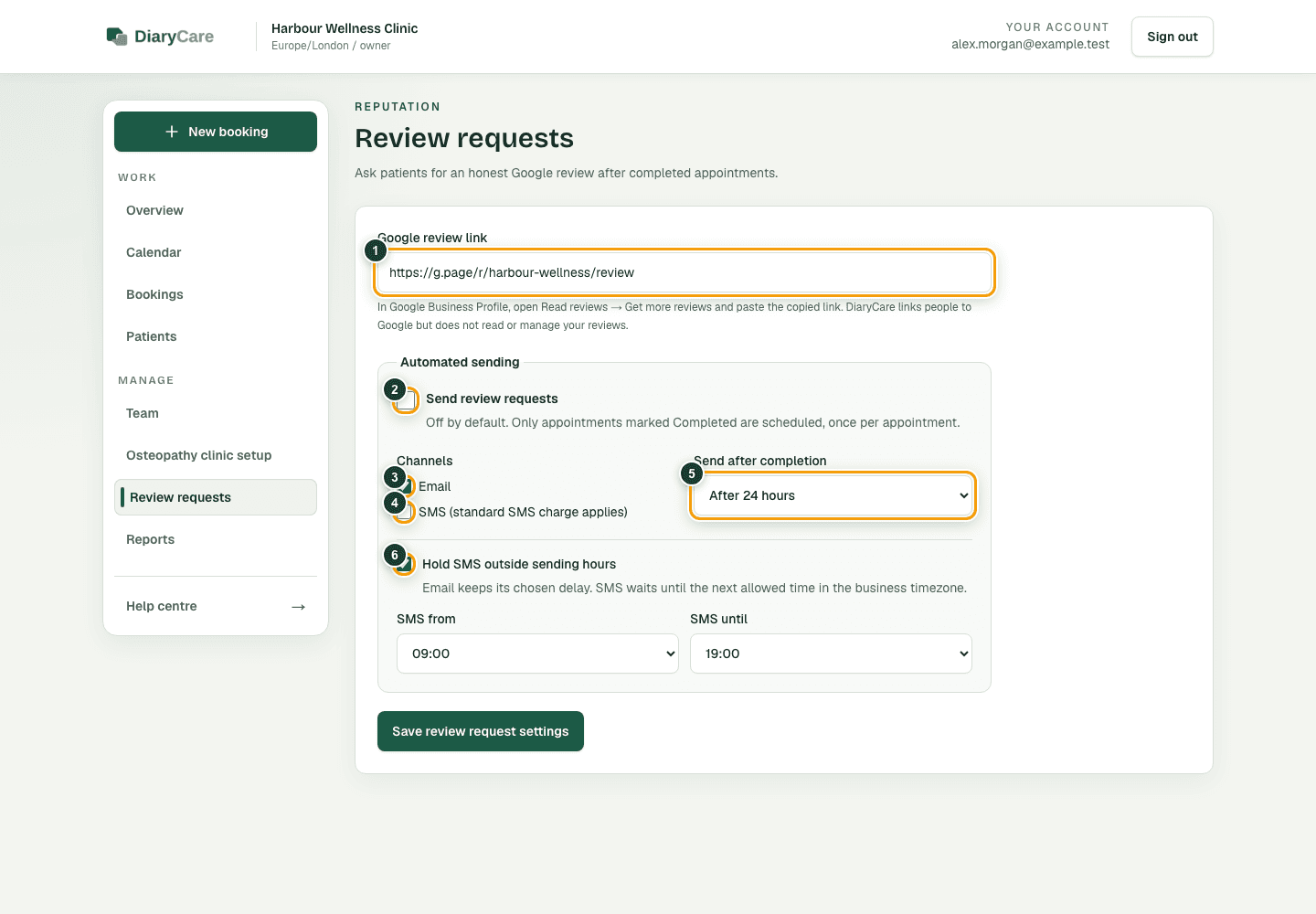
What the numbers show
- 1Paste the review link copied from Google Business Profile.
- 2Turn sending on only when the clinic is ready; it starts off.
- 3Select email when review requests should use the patient’s email address.
- 4Select SMS when review requests should use the patient’s mobile number and standard SMS charge.
- 5Set the delay after the appointment is completed.
- 6Optionally hold SMS until the next allowed clinic-local time.
Good to know: You can save the Google review link while leaving automation off. DiaryCare does not connect to, read, or reply to reviews in your Google Business Profile.
Send the request
- Open a confirmed appointment after its start time.
- Mark the appointment Completed.
- DiaryCare schedules the Google review link for the chosen delay and sends each due channel for which the patient has valid contact details.
- Immediately means the request is normally attempted straight away, with the scheduled worker providing a fallback within about five minutes.
- SMS outside the selected sending window waits until the next From time in the business timezone; email keeps the exact delay.
- Each completed appointment can send at most one review email and one review SMS, even if the completion action is retried.
- No-shows, cancelled appointments, and appointments that are not completed do not receive a request.
- A missing email address, missing or invalid mobile number, or the patient’s SMS opt-out suppresses that channel. Landlines never receive SMS.
- If you choose SMS only and SMS cannot be sent, DiaryCare can send the review by email when the patient has an address and email is available. Choosing both still sends email and SMS independently.
- An SMS review request opens a DiaryCare page where the patient can choose Leave a review or Stop SMS messages. Leave a review then opens the clinic's configured Google link.
- Review requests ask for an honest review and do not offer incentives or filter patients by likely rating.
- SMS review requests use the existing SMS price and appear in the same delivery and billing records as other texts.
Good to know: Delay and channel choices set the schedule when the appointment is completed. Turning off the master switch, removing the link, or disabling a channel before it is processed suppresses that pending channel; changing settings does not resend a request already processed.
Couldn’t find the answer?
Email contact@diarycare.co.uk and tell us which step you reached.
Contact support