
Clients and messages
Set customer email and SMS notifications
Choose how customers receive booking updates and when reminders are sent.
For: Owners and administrators
Change notification settings
- Open Business setup → Notifications.
- Turn email notifications on or off.
- Add up to six reminder times, entered as hours before the appointment.
- Turn SMS notifications on or off and set its reminder times.
- Optionally turn on Also send confirmation and reschedule SMS when the customer has email (off by default).
- Select Save notifications.
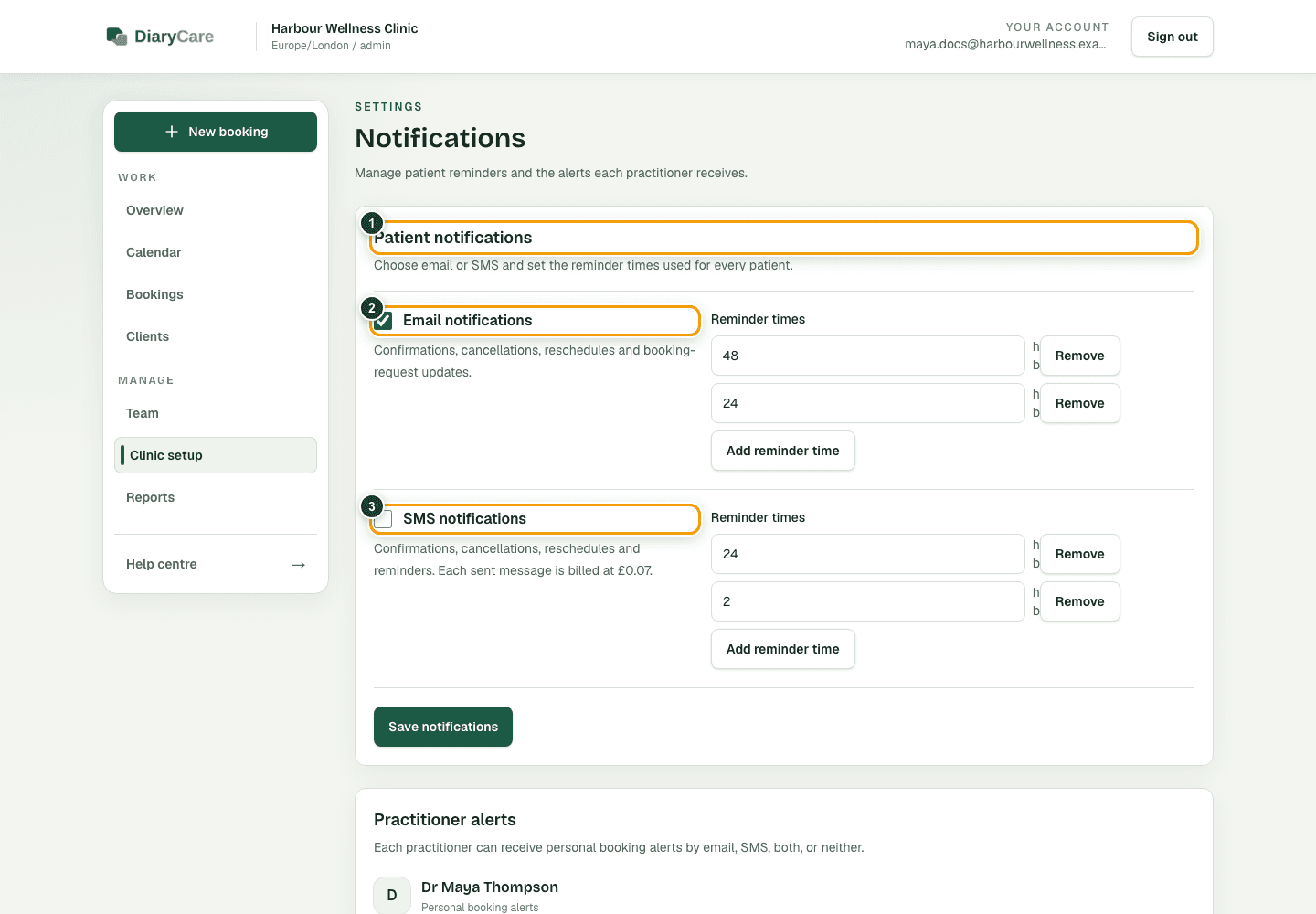
What the numbers show
- 1Customer notifications apply across the business; the screen says patient or client for its category.
- 2Email can send booking updates and up to six reminders.
- 3SMS can send booking updates and its own reminders at the displayed per-message price.
Messages sent by each channel
- Booking-request and rejection messages are email-only. They are not sent by SMS.
- Confirmations and reschedules use email when the customer has an address. They do not include a calendar file or Google invitation; customers change appointments in DiaryCare. SMS is added only when there is no email, or when you turn on Also send confirmation and reschedule SMS when the customer has email.
- Cancellations and reminders prefer SMS. If SMS cannot be sent, email is used as a backup. Customers are not sent both SMS and email for the same cancellation or reminder when SMS succeeds.
- Landlines and invalid mobile numbers never receive SMS.
- A patient SMS opt-out stops SMS only; email can still be sent when email is enabled.
Good to know: Removing every reminder time stops reminders for that channel, but ordinary appointment updates are still sent while the channel is enabled. Provider and staff alerts are separate from these customer channel rules. After saving, use a fictional test customer to check the channels you expect; do not use a real customer for testing.
Couldn’t find the answer?
Email contact@diarycare.co.uk and tell us which step you reached.
Contact support