
Appointments and the diary
Create a booking for a patient
Use the focused three-stage flow to add an appointment for a new or existing patient from a phone or larger screen.
For: Owners, administrators, office admins, and permitted practitioners
Before you start
- An active service and an active practitioner assigned to that service.
Book in three focused stages
- Select New booking from the dashboard, or select Add beside a provider in day view.
- In Service & patient, choose the service, then choose New patient or Existing patient. Staff can add a new patient for any service, including services limited to existing patients for online booking.
- For an existing patient, enter at least two characters from their name, email address, or phone number, then select the matching result. For a new patient, enter their first name, last name, and any available contact details. Email and phone are optional; you do not need to create a patient record separately before booking.
- The only active provider and their only available location are selected automatically. Open the advanced choices only when you want to change a choice, change the starting date, or use Schedule override.
- Continue to Time. DiaryCare automatically searches the next seven days and shows up to the first twelve valid choices in time order.
- Choose a time. Each choice shows its date, provider, duration, and location where applicable, then continue to Confirm.
- Check the appointment summary. Open Optional details only when you want to add the reason for the visit or answer a service question.
- Use the sticky Book appointment action to create the appointment.
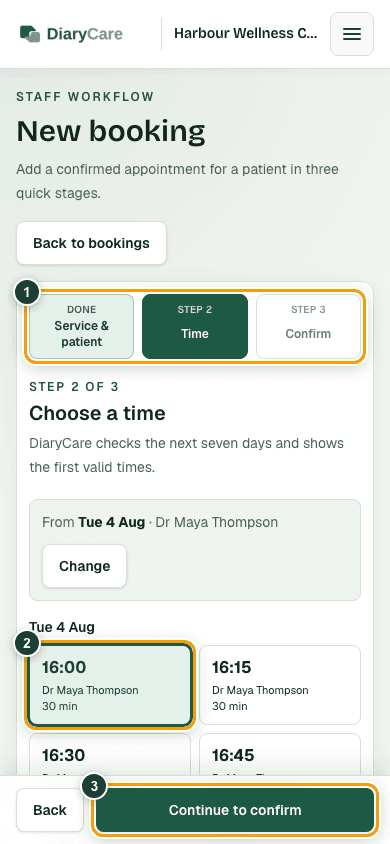
What the numbers show
- 1See the three stages and which one is active.
- 2Choose a compact time card showing the provider and duration.
- 3Continue from the sticky action without scrolling to the end of the page.
How staff times are chosen
The automatic seven-day search uses the same availability engine as public booking, but uses Internal booking minimum notice in Clinic setup → Booking rules instead of the separate Online booking minimum notice or a service or provider online lead-time override. Internal notice is 0 hours by default, so staff can choose the next otherwise-valid future start.
- Working hours, service windows, time off and closures.
- Service duration and buffers, location rules, and diary fill rules.
- Daily and weekly booking caps, existing DiaryCare appointments, and Google busy time.
Start from a patient record
- Open the patient or customer record.
- Select Book appointment when the action is available.
- DiaryCare opens Service & patient with that record selected. Choose the service and continue through Time and Confirm.
Use a schedule override only for an exception
- Open the advanced choices in Service & patient and select Schedule override.
- Choose the service, a specific provider, an optional location, and the clinic-local date and time.
- Choose New patient and enter their details, or choose Existing patient and select their record when your permissions allow it.
- Enter a clear reason for the override. The reason is required, can contain up to 500 characters, and is stored in the appointment activity.
- Review Confirm, then select Book with override.
Practitioner limits
An owner or administrator can allow practitioners to add bookings to their own diary. They can also allow practitioners to choose existing patients they have already treated. Practitioners cannot add a booking to another practitioner’s diary.
Connected staff app
On DiaryCare Pilot, authorised staff with manual booking permission can create a confirmed appointment through New or plus. The app searches patients and validated times on the server and writes a live clinic booking with the same confirmation and calendar side effects as the web flow.
- Schedule override and custom service-question answers are not available on the mobile create flow in this release.
- Reschedule, cancel, complete, no-show, approve, and reject remain on the web dashboard for the connected pilot.
Android booking preview differences
- The preview offers fixed synthetic locations and times. It does not run the live web availability engine or provide the web schedule-override path.
- Preview bookings are confirmed only in the app’s temporary synthetic workspace and reset after a cold process restart.
- The preview does not create a live patient or booking, update Google Calendar, or send a confirmation.
Couldn’t find the answer?
Email contact@diarycare.co.uk and tell us which step you reached.
Contact support